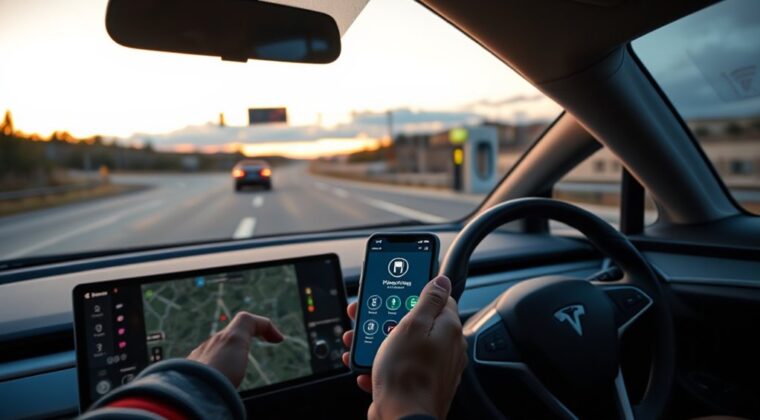
PlugShare helps you find EV chargers, compare station details, and plan charging stops before you drive. The best way to use it is to add your vehicle first, filter by connector and charging speed, check recent reviews and photos, then send the best stop to Google Maps or your preferred navigation app.
Quick Answer
To use PlugShare, create an account, add your EV, allow location access, then filter the map by connector, charging speed, network, access, and amenities. Open each station card to check hours, fees, plug details, recent reviews, photos, and availability when supported. Save reliable stops, plan routes, and use Navigate to open Google Maps.
Key Takeaways
- Add your EV in PlugShare before searching so connector filters match your vehicle more closely.
- Do not rely on the first nearby charger. Check hours, access rules, pricing, PlugScore, reviews, and recent check-ins.
- Use Trip Planner for longer drives, but keep a backup charger within range in case a station is full, restricted, or out of service.
- Use the Navigate or Directions button to send a selected station to Google Maps, Apple Maps, Waze, or another supported navigation app.
At a Glance
| Time Required | 5 to 10 minutes for setup; 10 to 20 minutes to plan a short route |
| Difficulty | Easy |
| Tools Needed | PlugShare app or website, your EV model, your connector type, and a navigation app |
| Cost | PlugShare is free to use; charging fees depend on the station and network |
Warning: Charger data can lag behind real conditions. Before you reroute, check recent check-ins, photos, access notes, fees, and a backup charger within your remaining range.
Get Set Up in PlugShare
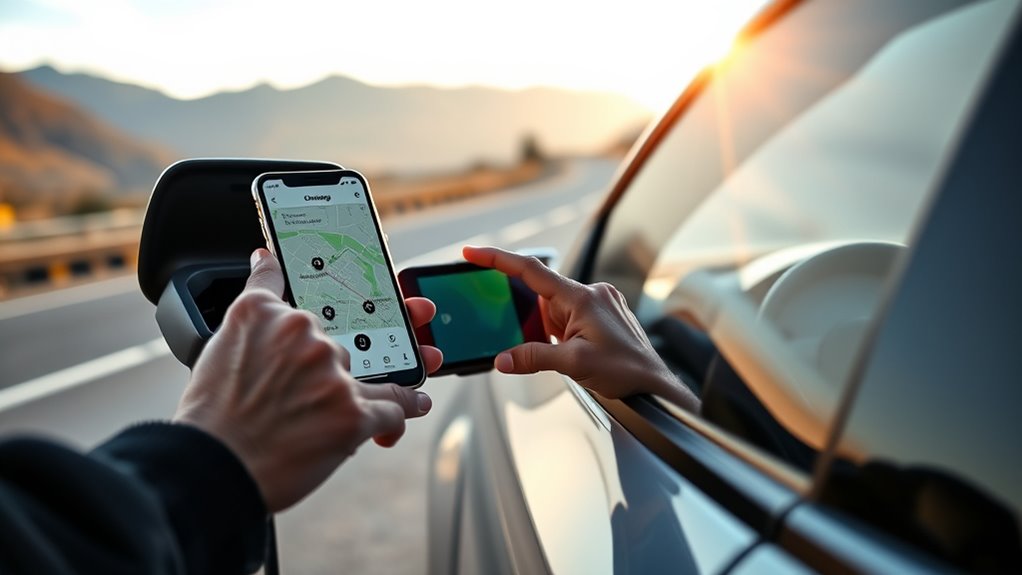
Start by installing PlugShare or opening the PlugShare map in your browser. Then create an account or sign in. An account lets you save favorite stations, add vehicles, check in, add notes, and keep trip plans easier to reuse.
Next, allow location access if you want nearby chargers to appear automatically. PlugShare may use precise location data to show chargers near you, so use the permission setting that matches your comfort level. You can also search by city, address, highway, hotel, or destination if you do not want to use live location.
The official PlugShare app listing says drivers can filter by plug type, charging speed, amenities, and provider, check station functionality and current availability where supported, link to a navigation app, add new stations, and use a built-in trip planner. That makes setup worth doing before you are low on charge.
Note: If you use PlugShare on a road trip, sign in before you leave home. Password resets, weak cell service, and app updates are easier to handle before you are sitting at a charger.
Add Your EV for Better Matches
Add your EV so PlugShare can narrow charger results by your vehicle and connector needs. This does not guarantee every listing will be perfect, but it reduces bad matches and helps you avoid stations your car cannot use.
Vehicle Profile Setup
Open the profile or Me area, choose the vehicle option, then add your make and model. If your exact trim is available, choose it. Some EV trims have different charging speeds or fast-charging support, so the closest match matters.
| Step 1 | Open your profile or Me tab. |
| Step 2 | Tap Add Vehicle or Manage Vehicles. |
| Step 3 | Choose your make, model, year, and trim when listed. |
| Step 4 | Save the vehicle and confirm the connector filters look right. |
| Step 5 | Update the profile if you change EVs, buy an adapter, or add a second vehicle. |
Compatible Charger Filters
After you add your EV, use filters to narrow the map. Common connector options include J1772 for many Level 1 and Level 2 stations, CCS for many non-Tesla DC fast chargers, CHAdeMO for some older or Japanese EVs, and Tesla or J3400/NACS for Tesla-style connectors. The U.S. Department of Energy Alternative Fuels Data Center explains that connector type, charging level, vehicle capability, and charger output all affect whether a station works for your car.
If you use adapters, read the station card carefully. A charger may appear useful on the map but still be a poor stop if the cable is too short, the parking space is blocked, the adapter is not supported, or the station is limited to customers, residents, employees, or hotel guests.
Find EV Chargers on the Map
Tap or click the map to see chargers near you. You can search a location, zoom along a highway, or enter a destination. On mobile, tap a station pin to open the station card. On desktop, click or hover where supported to preview details.
Do not rely only on pin color. App designs, filters, map legends, and station labels can change. The safer method is to open the station card and verify the connector, charging speed, access notes, PlugScore, reviews, photos, and availability details.
Map Filters and Pins
Use map filters before you compare individual stations. Start with connector type, then add charging speed, access, network, and amenities. If you need a quick road-trip stop, filter for DC fast charging and a connector your EV can use. If you are parking for several hours, Level 2 may be enough.
PlugShare can show many station types at once, including public chargers, restricted chargers, hotel chargers, dealership chargers, and home or shared locations where available. Filters help you remove stops that do not fit your trip.
Nearby Station Details
Open a station card and check the details before you drive there. Look for the address, operating hours, access rules, plug count, connector type, charging speed, pricing notes, parking fees, network, amenities, photos, and recent driver comments.
Recent comments are especially useful. Drivers may mention a broken screen, a cable that does not reach certain charge-port locations, a locked gate, a station that works only during business hours, or a charger that needs a separate network app.
Route-Based Charger Search
For longer trips, search along your route rather than only near your current location. This helps you choose stops that are close to the highway, near food or restrooms, and spaced well enough for your EV range.
When possible, choose a primary charger and a backup charger for each leg. A backup is not just for broken equipment. It also helps if chargers are full, blocked, slower than expected, restricted, or listed with old pricing.
Pro Tip: Save one fast charger and one nearby backup before you start each long leg. If your first stop fails, you can reroute quickly without searching while your battery is dropping.
Filter for Plug Type, Power, and Networks
Filters are the fastest way to turn a crowded map into a useful charging list. Start with the filter that can stop you from charging at all: connector type. Then refine by charging speed, network, access, payment, amenities, and station rating.
- Connector type: Choose the plugs your EV can use, such as J1772, CCS, CHAdeMO, Tesla, or J3400/NACS when available.
- Charging speed: Use Level 2 for longer stops and DC fast charging for road trips, if your EV supports it.
- Network: Filter for networks you already use, such as ChargePoint, EVgo, Electrify America, FLO, Tesla Supercharger, or other providers shown in your area.
- Amenities: Look for restrooms, restaurants, groceries, lodging, lighting, covered parking, or garage parking when those filters are available.
- Access: Watch for customer-only, employee-only, resident-only, dealership, hotel, paid parking, or gated locations.
PlugShare can also support Pay with PlugShare at participating locations. Do not assume every charger can be started or paid for inside PlugShare. Check the station card and network notes before you arrive.
Check Hours, Cost, and Plug Types
Before you drive to a station, confirm three basics: can you access it, can your car plug in, and can you pay or start the session? A charger can look perfect on the map and still be a bad stop if it sits behind a gate, requires a network account you do not have, or has parking fees that make it expensive.
Use this quick station check:
- Hours: Confirm the charger is open when you plan to arrive.
- Access: Check if it is public, customer-only, hotel-only, resident-only, or behind paid parking.
- Connector: Confirm the plug matches your EV or your adapter.
- Speed: Check the listed kW and remember your EV may charge slower than the station maximum.
- Cost: Look for energy fees, idle fees, parking fees, session fees, or time-based billing.
- Plug count: A site with more working stalls is usually safer than a single-plug stop.
- Recent activity: Read the newest check-ins before you trust an old listing.
One 2022 field study of public DC fast-charging CCS connectors in the San Francisco Bay Area found that 72.5% of tested connectors were functional during the test, which is a strong reason to check recent station reports and keep a backup stop.
Compare PlugScore, Reviews, and Photos
PlugScore gives you a fast reliability signal, but it should not be your only check. Treat it as a starting point, then read reviews and look at photos before you choose a station.
Look for reviews that mention:
- whether the plugs worked recently;
- whether charging started on the first try;
- whether speeds matched expectations;
- whether payment worked;
- whether the cable reached the charge port;
- whether the lot felt safe and well lit;
- whether the station was blocked by gas cars, delivery vehicles, or other EVs;
- whether access was limited by gates, business hours, or parking rules.
Photos help you judge what text cannot show. Check stall spacing, cable length, signage, lighting, entrance location, payment screen, plug condition, and nearby amenities. If the newest photos are old, rely more on recent check-ins.
Save Favorites and Check In
When you find a station that works well, save it as a favorite or bookmark. This builds your own charging shortlist for commutes, errands, airport runs, weekend trips, and repeat road-trip corridors.
After charging, check in and leave a short note. A useful check-in might say, “CCS plug 2 worked at 105 kW,” “garage closes at 10 p.m.,” or “payment screen was down but network app worked.” These details help other drivers and make your own history easier to review later.
If a station is missing, placed wrong on the map, under repair, restricted, or listed with old plug information, use PlugShare’s reporting or update tools where available. Some stations may be locked from user edits because data comes directly from charging operators, but issue reports can still help improve the listing.
Plan Your Route With Trip Planner
PlugShare’s Trip Planner helps you map longer drives around charging stops. Use it before you leave, not only when the battery is low. Enter your destination, review possible charging stops, and filter for the connector and charging speed your EV can use.
Build your route with a practical buffer. Do not plan to arrive at every charger with only a few miles left. Range can drop because of speed, weather, elevation, headwind, cargo, cabin heat, air conditioning, and detours.
A simple road-trip workflow looks like this:
- Enter your start point and destination.
- Add your EV or confirm your vehicle profile is active.
- Filter for compatible connectors and useful charging speeds.
- Choose charging stops that are easy to access from your route.
- Check PlugScore, recent reviews, photos, hours, and fees.
- Save the route and bookmark the best stops.
- Pick a backup charger for each long gap.
- Recheck your next stop before leaving the previous one.
You can also add non-charging stops, such as meals, hotels, errands, or sightseeing. This makes your route more realistic because it matches how you actually travel.
Send a PlugShare Stop to Google Maps
Once you choose a charger, send it to Google Maps or your preferred navigation app for turn-by-turn directions. PlugShare is useful for charger research, while your navigation app is usually better for traffic, lane guidance, arrival time, and rerouting.
- Open the station card in PlugShare.
- Confirm the address, connector, access notes, and recent check-ins.
- Tap Directions, Navigate, or the navigation icon shown in your app version.
- Choose Google Maps, Apple Maps, Waze, or another supported navigation app.
- Confirm the destination pin is the charger location, not just the center of a large parking lot.
- Start navigation and keep PlugShare open if you want to recheck station details before arrival.
If you use Android Auto or Apple CarPlay, PlugShare may also help you browse nearby, bookmarked, or planned charging locations from a compatible vehicle display. Availability and features can vary by phone, operating system, vehicle, and app version.
Troubleshoot Common PlugShare Problems
If PlugShare does not show useful chargers, start with the filters. A narrow connector, network, power, or amenity filter can hide good stations. Clear filters, zoom out, and search again along your route.
| Problem | What to Do |
| No chargers appear | Clear filters, zoom out, search by address, and check location permission. |
| Wrong plug type appears | Update your vehicle profile and manually filter by connector. |
| Station looks open but is restricted | Read access notes, reviews, photos, and parking details before driving there. |
| Availability looks uncertain | Check the network app too, then choose a backup charger. |
| Directions point to the wrong place | Compare the PlugShare photos, address, and navigation pin before you start driving. |
Use PlugShare With Other Charging Apps
PlugShare is best as a cross-network charger finder and planning tool. For starting a session, payment, live stall status, or account-specific pricing, you may still need the charger network’s own app.
For example, ChargePoint’s app listing says it can show compatible stations, pricing, popular charging times, availability, charging history, turn-by-turn navigation, and payment options for ChargePoint and partner stations. That makes ChargePoint useful when you are using that network, while PlugShare remains useful for comparing stations across many networks and reading driver-supplied reviews and photos.
The best setup for road trips is simple: use PlugShare to research and compare stops, use the charging network app to confirm payment or live details when needed, and use Google Maps or your preferred navigation app for directions.
Frequently Asked Questions
How do you find EV chargers on a trip with PlugShare?
Open PlugShare, add your EV, enter your route or destination, and filter for compatible connectors and charging speeds. Then check each station’s hours, access rules, PlugScore, recent reviews, photos, and availability details. Save your chosen stop and at least one backup charger before you start that leg.
How do you use PlugShare to plan a trip?
Use Trip Planner, enter your start point and destination, confirm your vehicle profile, and filter by connector and charging speed. Add charging stops that fit your range, then review station details and save the route. Keep a range buffer because weather, speed, hills, traffic, and detours can reduce real-world range.
How do you find EV chargers along a route?
Search your route in PlugShare or use Trip Planner, then filter for chargers along the path. Focus on stations close to your road, with compatible plugs, good recent reviews, clear access notes, and useful amenities. For long trips, choose both a primary charger and a backup charger for each major gap.
Is PlugShare better than ChargePoint?
PlugShare is often better for comparing chargers across many networks because it combines map results, reviews, photos, PlugScore, and trip planning. ChargePoint is often better for ChargePoint-specific charging sessions, pricing, payment, and account features. Many EV drivers use both: PlugShare for planning and the network app for starting or paying for a charge.
Can PlugShare send a charger to Google Maps?
Yes. Open the station card, confirm the charger details, then tap Directions, Navigate, or the navigation icon. Choose Google Maps if it is offered on your phone. Before driving, make sure the navigation pin points to the actual charging area, especially at malls, garages, hotels, campuses, and large parking lots.
Does PlugShare show live charger availability?
PlugShare can show current availability where station or network data supports it, and user check-ins can add helpful recent context. It is not safe to assume every listing updates live. For important stops, check recent PlugShare activity, the charger network app, and a backup station nearby.
Conclusion
PlugShare works best when you use it as a full charging research tool, not just a map of nearby plugs. Add your EV, set the right filters, open each station card, compare PlugScore with recent reviews and photos, and save both your preferred charger and a backup. For road trips, plan stops before you leave, recheck the next charger before each leg, and send the final stop to Google Maps or your preferred navigation app for turn-by-turn directions.
Sources
- PlugShare on Google Play – app features, filters, availability details, navigation-app handoff, PlugShare Pay, and Android Auto support.
- PlugShare on the Apple App Store – app features, reviews, photos, Trip Planner, CarPlay support, and recent version updates.
- U.S. Department of Energy Alternative Fuels Data Center: Electric Vehicle Charging Stations – charging levels, connector types, station terminology, and DC fast charging context.
- Reliability of Open Public Electric Vehicle Direct Current Fast Chargers – study supporting the need to check recent station status and keep backup stops.
- ChargePoint on Google Play – ChargePoint app features used for the PlugShare vs ChargePoint comparison.
