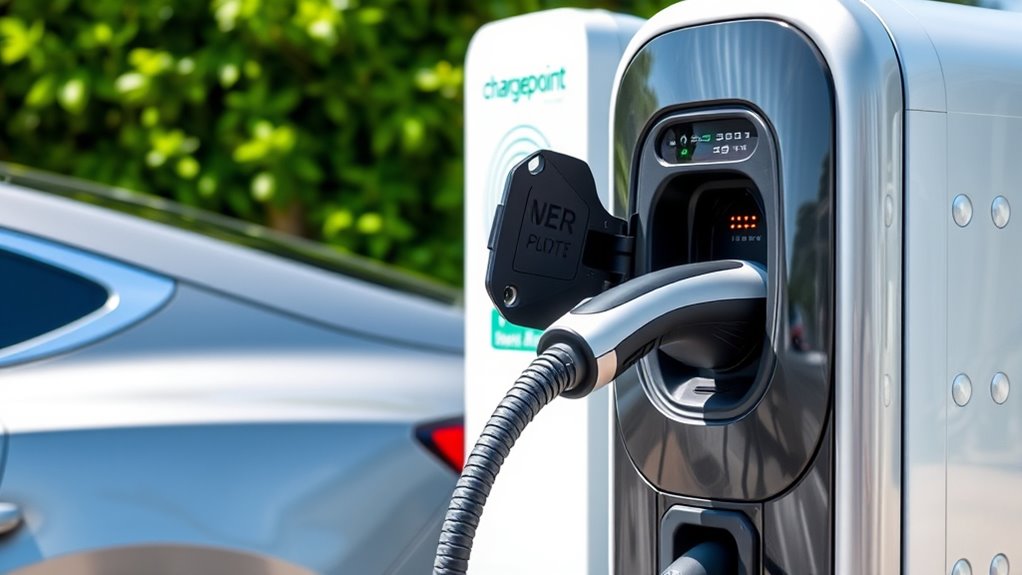
If you are using a ChargePoint station for the first time, the process is simple once you know the order: set up the app, choose the right station, start the session, plug in, confirm charging, and unplug safely when you are done. The most important checks are connector type, price, station status, and whether you are using Tap to Charge, the app, or a ChargePoint card.
Quick Answer
To use a ChargePoint station, open the ChargePoint app, find an available charger that matches your EV’s connector, start the session with Tap to Charge, the app, or an activated ChargePoint card, then plug in and confirm your car is charging. When finished, stop the session if needed, unplug, and move your vehicle.
Key Takeaways
- The ChargePoint app helps you find stations, check availability, filter by connector, view pricing, and start some sessions.
- You can usually start a ChargePoint session with Tap to Charge, the Start Charge button in the app, or an activated ChargePoint card.
- Always confirm the station connector matches your EV before you park and plug in.
- For DC fast charging, press the station’s Stop Charging button before unplugging if the station requires it.
- Move your EV when charging is complete so the next driver can use the station.
At a Glance
| Time Required | About 2 to 5 minutes to start; charging time depends on battery size, state of charge, vehicle limit, and station power. |
| Difficulty | Easy for most EV drivers after app setup. |
| Tools Needed | ChargePoint app, ChargePoint account, payment method, or activated ChargePoint card. |
| Cost | Varies by station owner, location, charging speed, time, and any idle or service fees shown in the app. |
Create Your ChargePoint Account Before You Charge
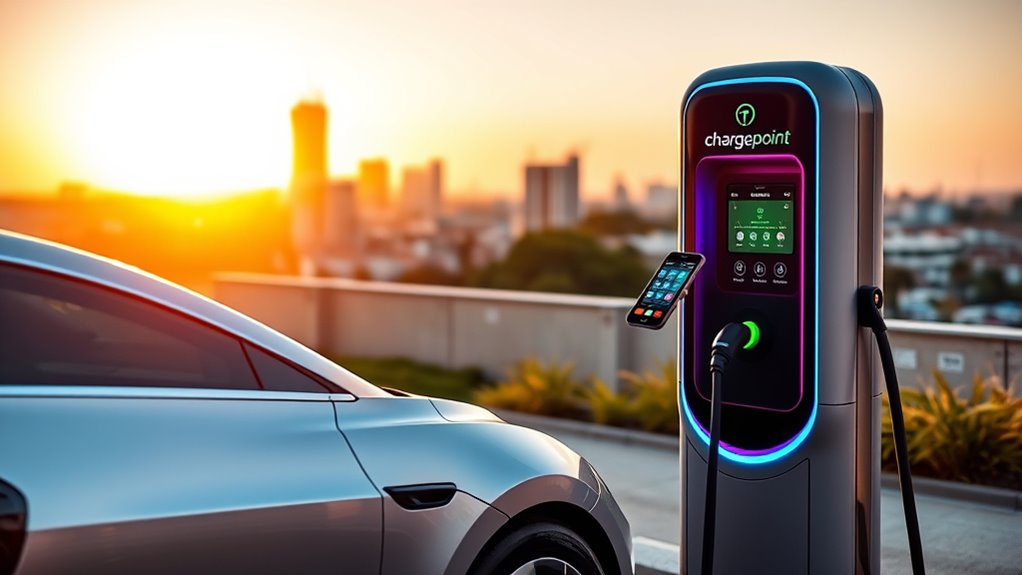
Start by downloading the ChargePoint app and creating a free account. A ChargePoint account gives you the smoothest experience because you can save payment details, find stations, start supported sessions, receive receipts, and review your charging history.
ChargePoint says account payment options can include credit card, Apple Pay, Google Pay, PayPal, or supported roaming agreements with other charging networks. You will not be charged for free stations, but paid stations require an approved payment method.
Set Up Tap to Charge on Your Phone
Tap to Charge lets you start many ChargePoint sessions by holding your phone over the reader symbol on the station. In North America, ChargePoint lists it as one of the main ways to start a session, along with the app and an activated ChargePoint card.
- Open the ChargePoint app and sign in.
- If you use an iPhone, add your ChargePoint Pass to Apple Wallet.
- If you use Android, turn on NFC and follow the setup prompts in the ChargePoint app.
- Make sure your phone software is current. ChargePoint lists iOS 15 or higher for iPhone and Android 8.0 or higher for Android phones.
- Keep your phone screen on when tapping the station reader.
Note: Tap to Charge setup is different on iPhone and Android. Follow the instructions inside the ChargePoint app, especially if you need to use Face ID, Touch ID, Apple Wallet, or Android NFC.
Find ChargePoint Stations in the App
Use the map in the ChargePoint app to find stations near you or along your route. Before driving to a station, check four details: availability, connector type, charging speed, and price.
The ChargePoint app can show nearby public EV chargers and filter stations by charging speed, connector type, and price. This helps you avoid arriving at a station that is too slow, occupied, incompatible, or more expensive than expected.
On the map, ChargePoint uses color and bolt icons to help you choose faster:
- Green: a charging spot is available.
- Blue: a charging spot is in use.
- Gray: the station may be out of service, closed, or status unknown.
- One bolt: Level 2 charging.
- Two bolts: medium DC charging.
- Three bolts: DC fast charging.
Pro Tip: Do not choose a station by distance alone. A charger 10 minutes farther away may still save time if it is available, faster, cheaper, and compatible with your EV.
Check Your EV Connector Type
Before you plug in, make sure the station connector matches your vehicle. Public EV stations can have different connectors, and your EV may not support every plug you see.
For many non-Tesla EVs in North America, Level 2 charging commonly uses a J1772 connector. DC fast charging may use CCS, CHAdeMO, or J3400/NACS, depending on the vehicle and station. The U.S. Department of Energy explains that charging time varies based on battery size, state of charge, vehicle charging limits, charger power, and equipment type.
Use the ChargePoint app filter to match your vehicle’s connector. If you are unsure, check your owner’s manual, look at the charge port on your EV, or search by your exact vehicle model inside the app.
Warning: Never force a charging connector into your EV. If the plug does not fit easily, stop and choose a compatible station or adapter approved by your vehicle manufacturer.
How to Start Charging at a ChargePoint Station
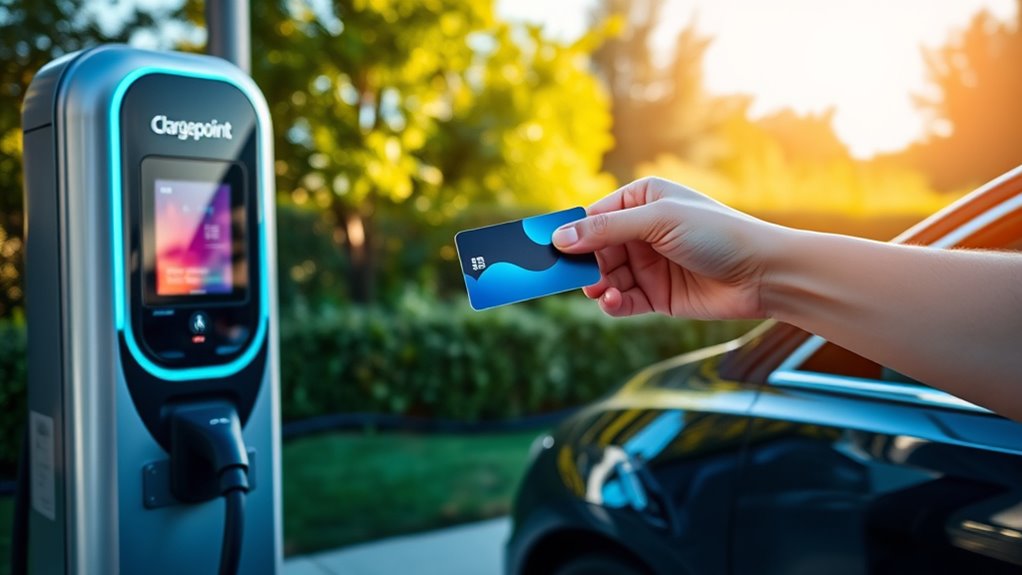
When you arrive, park close enough for the cable to reach without stretching it. Then start the session using one of these methods:
- Tap to Charge: hold your phone over the reader symbol on the station after setting up Tap to Charge in the app.
- Start Charge in the app: open the station details in the ChargePoint app and tap the Start Charge button if the station supports app start.
- ChargePoint card: tap your activated ChargePoint card on the station reader. Some roaming partner stations may require a ChargePoint card.
After the station unlocks or authorizes the session, connect the cable to your EV and, if needed, to the station. Push the connector in firmly until it is seated. Then check your vehicle dashboard, charge-port light, station display, or app status to confirm charging has started.
Monitor Your Charging Session With Real-Time Updates
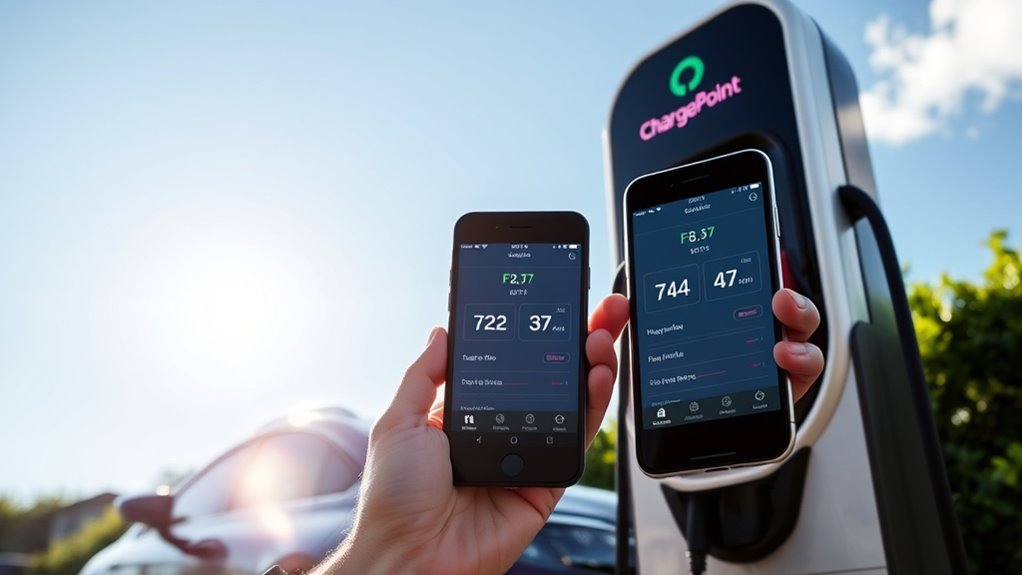
Once your EV is charging, use the ChargePoint app to watch the session. Depending on the station and network, you may see charging status, cost, estimated time, and session details.
Turn on app notifications so you know when charging is complete or interrupted. This matters at busy public stations because another driver may be waiting for the charger.
If you are using a roaming partner station through ChargePoint, the experience may be slightly different. ChargePoint notes that roaming partner stations are operated by third-party networks, and not all roaming stations can provide status notifications.
End Your Charge and Unplug Safely
When your battery has enough range or the app says charging is complete, follow the correct unplugging steps:
- Check the app, vehicle dashboard, charge-port light, or station display to confirm the session is finished.
- If you are using a DC fast charger, press the Stop Charging button on the station if required before unplugging.
- Unlock your vehicle doors if your EV locks the charging plug in place.
- Remove the connector from your vehicle without twisting or forcing it.
- Return the cable and connector to the station holder if the station has one.
- Move your EV promptly so another driver can charge.
ChargePoint says some EVs require you to unlock the doors before the charging plug can be removed. If the connector does not release, do not pull hard. Unlock the vehicle, check the app or station screen, and use your vehicle’s release procedure.
Payment Methods for Charging
ChargePoint payment depends on the station and account setup. In most cases, you add a payment method to your ChargePoint account and the station cost is shown in the app before or during the session.
ChargePoint lists several payment options for accounts, including credit card, Apple Pay, Google Pay, PayPal, and some roaming agreements. Some stations may be free, while others charge by energy, time, session, parking rules, idle fees, or local pricing policies set by the station owner.
You can also use some ChargePoint stations without a ChargePoint card, and ChargePoint says charging without an account may be possible, though additional fees may apply. For the easiest experience, use a ChargePoint account with a saved payment method.
Access Your Charging History and Budget for Future Use
After a paid session, ChargePoint can send a receipt by email. You can also review past sessions in the Charging Activity area of the app. This is useful if you want to track monthly EV charging costs, compare stations, or separate personal and work charging.
When budgeting, do not compare only the price per session. Look at the total cost, charging speed, time parked, idle fees, and how much range you actually gained. A cheaper Level 2 station may be best while you shop or work, while DC fast charging may be worth the higher cost during a road trip.
Troubleshooting Common ChargePoint Problems
If the station does not start, work through the simplest checks first:
- The station is gray or unavailable: choose another station in the app or check nearby ports at the same site.
- The connector does not fit: stop and use the app filter to find the right connector for your EV.
- Tap to Charge does not work: make sure your phone screen is on, NFC is enabled on Android, and you are signed in to the ChargePoint app.
- The app will not start the session: confirm your payment method, network connection, station number, and account status.
- The station starts but the car does not charge: unplug, reconnect firmly, and check your EV dashboard for a charging message.
- The plug will not release: unlock your EV doors, stop the session in the app or on the station if needed, and follow your vehicle’s charge-port release steps.
If a station appears broken, use the ChargePoint app or station support information to report the issue. You can also choose another nearby station if you need a charge immediately.
Frequently Asked Questions
How do you charge an EV at a ChargePoint station?
Open the ChargePoint app, choose a station that matches your connector, start the session with Tap to Charge, the app, or an activated ChargePoint card, then plug the connector into your EV. Confirm charging has started on your vehicle dashboard, the app, or the station display.
How do you use ChargePoint for the first time?
Download the ChargePoint app, create a free account, add a payment method, and set up Tap to Charge if you want to use your phone. Before driving to a station, filter by your EV’s connector, check availability, review the price, and make sure the station speed fits your charging needs.
What charging stations can a Subaru Solterra use?
It depends on the model year and charge port. Many earlier Solterra models use J1772 for Level 2 charging and CCS for DC fast charging, while newer EVs may use J3400/NACS depending on the model year and market. Check your Solterra owner’s manual, look at the charge port, and use the ChargePoint app connector filter before choosing a station.
How do you pay at a ChargePoint charging station?
The easiest way is to add a payment method to your ChargePoint account. ChargePoint supports options such as credit card, Apple Pay, Google Pay, PayPal, and some roaming agreements. Some stations are free, while paid station prices and possible fees are shown in the app.
Can you use ChargePoint without a card or account?
You can usually charge without a physical ChargePoint card by using Tap to Charge or the Start Charge button in the app. ChargePoint also says some charging may be possible without an account, but additional fees can apply. A ChargePoint account gives you the smoothest experience.
What should you do if a ChargePoint connector will not release?
First confirm the charging session has stopped. If you are fast charging, press Stop Charging on the station if required. Then unlock your EV doors, because some vehicles lock the connector during charging. Do not pull hard or force the plug. Follow your vehicle’s charge-port release instructions.
Conclusion
Using ChargePoint stations becomes easy when you follow the same routine each time: check the app, confirm connector and price, start the session, plug in, verify charging, monitor your progress, and unplug safely when finished. Set up your account and payment method before your first visit, and use app filters to avoid incompatible or unavailable stations.
Sources
- ChargePoint: How do I start a charging session or use Tap to Charge? — start methods, Tap to Charge setup, receipts, charging history, and unplugging guidance.
- ChargePoint: How do I pay for charging? — account payment methods and payment management.
- ChargePoint: Map colors and pin shapes — station availability colors and speed icons.
- ChargePoint: Where can I charge my EV? — ChargePoint network and roaming partner access.
- ChargePoint: Roaming partner station charging — differences between ChargePoint and partner-network sessions.
- U.S. Department of Energy AFDC: Electric Vehicle Charging Stations — charging levels, connector types, and factors that affect charging time.