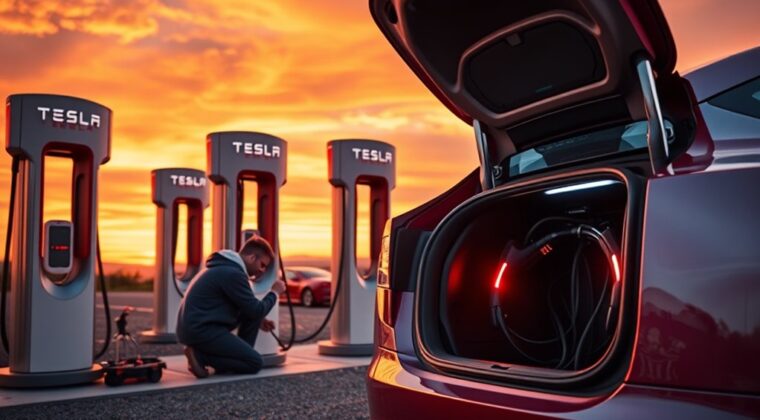
If your Tesla shows a Supercharger error, start with the basics: check the stall, reseat the connector, read the exact alert on the touchscreen, confirm your Tesla app payment method, and make sure the charge port is clean and dry. Many issues come from a bad stall, a loose connector, a paused software update, a billing problem, or a vehicle-side charge-port fault.
Quick Answer
Common Tesla Supercharger errors usually mean the car and charger did not complete the charging handshake. Try another stall, fully reseat the plug, check the charge-port area, confirm your Tesla app payment method, and finish any software update. If the same error follows the car across multiple stalls, schedule Tesla Service.
Key Takeaways
- If one stall fails, try another stall at the same site before assuming your Tesla has a problem.
- A loose connector, dirt, moisture, frost, or damage around the charge port can interrupt DC fast charging.
- Software updates, unpaid balances, missing payment methods, or app account issues can also block Supercharging.
- Do not force the connector if the port, pins, cable, or handle looks damaged.
- Use Level 2 charging temporarily if the car can still AC charge, then contact Tesla Service if Supercharging keeps failing.
At a Glance
| Time Required | 5 to 15 minutes for basic checks; longer if you need an alternate charger or Tesla Service. |
| Difficulty | Easy for basic troubleshooting; Tesla Service needed for repeated vehicle-side faults. |
| Tools Needed | Tesla app, clean dry microfiber cloth, phone signal or Wi-Fi, and your vehicle touchscreen alert. |
| Cost | Basic checks are free; Supercharging, Level 2 charging, or service costs depend on your account, location, and repair need. |
Understanding Tesla Supercharger Errors
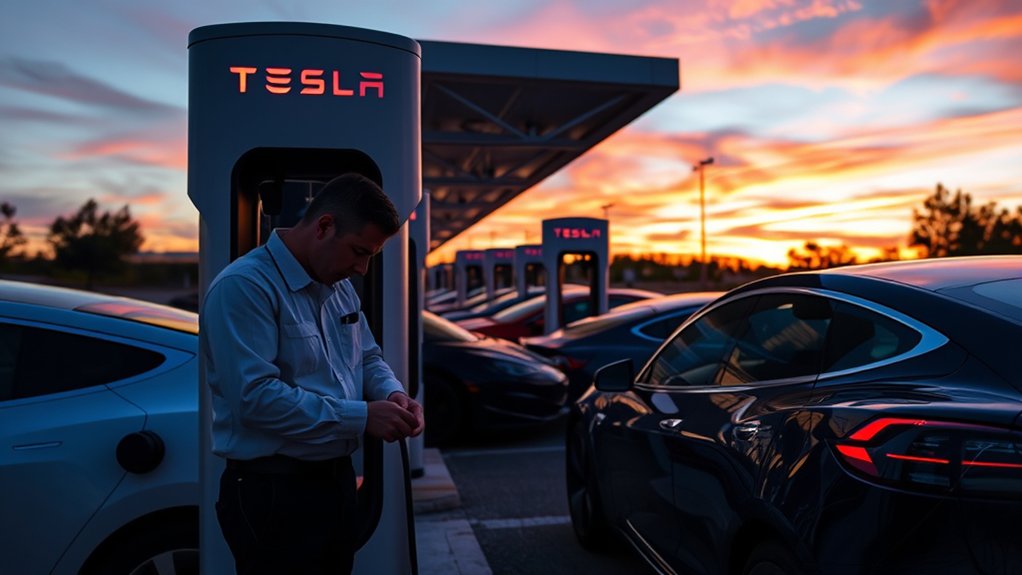
When you plug into a Tesla Supercharger, your car and the charging equipment have to communicate before high-voltage DC charging begins. If that handshake fails, the touchscreen may show an alert such as Supercharging not available, Unable to charge, Charging stopped, or a message telling you to try another charger.
Tesla says Superchargers are designed for fast long-distance charging, and the network now includes more than 80,000 global Superchargers. Charging speed still varies by battery temperature, state of charge, battery size and age, vehicle configuration, climate, and the charger at that site. You can review Tesla’s current Supercharger guidance on Tesla’s Supercharging support page.
A Supercharger error does not always mean your car is broken. First find out whether the problem follows the stall, the site, your account, or the vehicle.
Most errors fall into five groups:
- Stall or site issue: one charger is offline, damaged, blocked, or unable to start a session.
- Connector or charge-port issue: the plug is not fully seated, the latch does not engage, or the port has dirt, moisture, ice, or damage.
- Software issue: an update is downloading, installing, stuck, or the touchscreen needs a reboot.
- Account or payment issue: the vehicle owner, default payment method, or unpaid balance needs attention in the Tesla app.
- Vehicle hardware issue: the charge port, high-voltage charging system, or related electronics need Tesla diagnostics.
Common Tesla Supercharger Error Messages
Tesla alert wording can vary by model, software version, region, and charging hardware. Instead of relying only on the headline message, tap or read the full alert on the touchscreen and note whether the car suggests AC charging, another stall, software action, or service.
Supercharging Not Available
The Supercharging not available message often means your Tesla could not start a DC fast-charge session. Common causes include a poor connector seat, a blocked or dirty charge port, a temporary stall fault, a payment/account problem, or a vehicle-side issue that prevents DC fast charging.
Start with the simplest test: unplug, wait a few seconds, plug in firmly again, and listen for the connector latch. If charging does not start, try a different stall at the same site. If the second stall works, report the bad stall in the Tesla app and continue charging.
Charge Port Issues
Charge-port problems can interrupt Supercharging even when the station is working. Look for dirt, road salt, water, frost, cracked plastic, bent-looking pins, or anything that keeps the connector from sitting straight. The connector should slide in smoothly and latch without being forced.
Warning: Do not force a Supercharger connector into the port. If you see melted plastic, a damaged cable, a damaged handle, liquid inside the port, a burning smell, or a persistent red charging alert, unplug safely and contact Tesla Service.
If the port looks dirty, use a clean, dry microfiber cloth around the outer charge-port area. Do not spray cleaners into the port, insert tools into the pins, or scrape ice with metal objects.
Incomplete Software Update
A software update can temporarily affect normal vehicle functions. Tesla says updates are delivered over the air, download over Wi-Fi, and must be installed while the vehicle is parked. Tesla also notes that the vehicle will not charge during the install phase and charging resumes after the update is complete.
To check this:
- On the touchscreen, open Controls > Software.
- Look for an available, downloading, scheduled, or installing update.
- Connect to stable Wi-Fi if the update is still downloading.
- Let the install finish while parked.
- If the touchscreen is unresponsive after an update, reboot the touchscreen by holding both steering-wheel scroll buttons until the Tesla logo appears.
You can read Tesla’s current update guidance at Tesla Software Updates.
Payment, Account, or Ownership Issues
Some Supercharger errors are not mechanical. Tesla says you need the Tesla app, a payment method, and a designated Supercharging payment method before using a Supercharger. An unpaid balance, missing default payment method, or ownership-transfer issue can stop a session from starting.
Check the Tesla app before assuming the charger is broken:
- Open the Tesla app.
- Tap the menu and go to Charging.
- Check Manage Payment and confirm a valid payment method is selected.
- Look for any unpaid balance or account notice.
- If you recently bought the car used, make sure the vehicle is transferred into your Tesla account.
Quick Fixes for Communication Issues
Use this order so you do not waste time chasing the wrong problem.
Reset the Charging Connection
- Press the connector button and unplug the Supercharger handle.
- Wait at least 10 seconds.
- Check that the handle, cable, and port look clean and undamaged.
- Plug in firmly until the connector sits straight and the latch engages.
- Watch the touchscreen and charge-port light for the next alert.
If the session starts, monitor the first minute of charging. If it starts and then stops again, move to another stall and repeat once.
Try Another Stall or Site
A single Supercharger post can have a temporary fault. If one stall fails, try a nearby stall at the same location. If several stalls fail for your car but other vehicles are charging, the problem is more likely your vehicle, account, connector fit, or software status.
If the whole site appears down, use your in-car navigation or Tesla app to find another Supercharger. Tesla says pricing, peak times, and site details are shown in the vehicle touchscreen or app, and most Supercharger stations are open 24 hours a day, though nearby amenities may have limited hours.
Verify Network Connectivity
Poor connectivity can make it harder to check app payment status, report a charger issue, or complete a software download. If your Tesla has a pending update, connect the car to reliable Wi-Fi before relying on Supercharging again.
Note: Vehicle connectivity is not the same as the physical charging handshake. A poor signal may affect app features or updates, but a loose connector, payment issue, bad stall, or vehicle fault can still be the root cause.
Reboot the Touchscreen
If the alert looks software-related or the touchscreen is slow, reboot the touchscreen:
- Park safely.
- Keep your foot off the brake if possible.
- Hold both steering-wheel scroll buttons.
- Release when the Tesla logo appears.
- Wait for the screen to restart, then try charging again.
This can clear some temporary display or software glitches, but it will not fix a damaged port, a bad cable, or a true high-voltage charging fault.
Troubleshooting Charging Port Problems
A Supercharger cable is heavier and less flexible than many home-charging cables, so alignment matters. A connector that is slightly twisted, pulled sideways, or blocked by debris may not latch correctly.
Check these items before trying again:
- Connector position: The handle should sit straight, not tilted or hanging under tension.
- Port area: The port should be free of visible dirt, sand, salt, moisture, snow, and ice.
- Latch behavior: The car should recognize and lock the connector without repeated force.
- Cable condition: Do not use a handle or cable that looks cracked, crushed, burned, or exposed.
- Vehicle alert: A repeated red or service-related alert means you should stop troubleshooting and contact Tesla.
Pro Tip: If the cable is pulling sideways, park again so the cable reaches the port with less tension. A better angle can help the connector seat fully.
Tesla Supercharger Error Checklist by Symptom
| Symptom | Likely Cause | Best Next Step |
| One stall fails, another works | Bad or temporarily offline stall | Charge at the working stall and report the bad one in the Tesla app. |
| Several stalls fail for your car | Vehicle, account, payment, software, or charge-port issue | Check payment, update status, port condition, then use Level 2 or schedule service. |
| Connector will not latch | Plug not seated, cable tension, obstruction, or port fault | Reposition the car, inspect the port, and stop if anything looks damaged. |
| Car says to try AC charging | Possible DC fast-charging restriction | Use Level 2 temporarily and schedule Tesla Service if DC charging keeps failing. |
| Charging starts slowly | High state of charge, cold battery, hot battery, shared site load, or vehicle limit | Navigate to the Supercharger for preconditioning and avoid expecting peak speed near a full battery. |
What to Do If Quick Fixes Don’t Work: Contacting Tesla Support
If the same Supercharger error follows your car across multiple stalls or sites, treat it as a vehicle-specific issue. Tesla says service appointments can be scheduled and managed in the Tesla app, and the app may run diagnostics before showing service options. See Tesla’s service appointment guidance for the current workflow.
Before you schedule service, collect the details Tesla will need:
- The exact alert wording on the touchscreen.
- The Supercharger location and stall number.
- Whether another stall worked.
- Whether Level 2 AC charging still works.
- Your current software version.
- Photos of any visible charge-port or connector issue.
- The time, weather conditions, and battery state of charge when the error appeared.
If the issue appears to be a broken or inoperative charger rather than your vehicle, report the location in the Tesla app. Tesla says you can select the charging location, choose Report an Issue, select a category, and include a photo. Tesla notes this reporting feature requires Tesla app version 4.39.0 or later.
How to Use Level 2 Charging Temporarily
If Supercharging fails but your Tesla can still AC charge, use Level 2 charging as a short-term backup. It is slower than a Supercharger, but it can keep you moving until you finish an update, fix an account issue, or get service.
Tesla’s current charging support gives these useful reference points:
- Wall Connector: up to 44 miles of range per hour of charge, depending on model and installation.
- Destination Charging: up to 44 miles of range per hour of charge at supported locations.
- 240-volt outlet with the right adapter: up to 30 miles of range per hour of charge.
- Standard 120-volt outlet: about 2 to 3 miles of range per hour of charge.
You can review Tesla’s current charging-speed examples at Tesla Charging Support.
When using Level 2 temporarily, confirm that the connector is fully seated, the station is active, and the Tesla app shows charging progress. If AC charging works but DC Supercharging repeatedly fails, mention that clearly in your Tesla Service request because it helps narrow the diagnosis.
Tips to Prevent Future Charging Errors
You cannot prevent every Supercharger or network-side issue, but you can reduce avoidable charging interruptions.
- Use navigation before Supercharging. Routing to a Supercharger helps the car prepare the battery for faster charging when supported.
- Keep the charge-port area clean. Wipe the outer area with a clean, dry cloth if it collects road salt, dust, or moisture.
- Do not ignore software updates. Keep the vehicle connected to Wi-Fi when parked so updates can download reliably.
- Keep payment current. Confirm your Tesla app payment method and billing address before a road trip.
- Watch the first minute. Stay near the car until charging starts and the app shows stable progress.
- Report bad stalls. If one post fails but another works, report the issue in the Tesla app so Tesla can review it.
- Check recalls and safety issues. Use the NHTSA recall lookup if you want to check current recalls, investigations, complaints, or manufacturer communications for your vehicle.
Frequently Asked Questions
Why does my Tesla say Supercharging is not available?
It usually means your car could not start a DC fast-charge session. Try another stall, check the connector fit, inspect the charge port, confirm your Tesla app payment method, and make sure no software update is stuck. If the same message appears at multiple stalls or sites, schedule Tesla Service.
How do I reset Tesla charging?
Unplug the connector, wait about 10 seconds, and plug in again firmly. If the touchscreen seems frozen or the alert looks software-related, reboot the touchscreen by holding both steering-wheel scroll buttons until the Tesla logo appears. If the issue persists across multiple stalls, use the Tesla app to schedule service.
Can an unpaid balance stop Supercharging?
Yes. Tesla says unpaid balances, missing payment methods, or an incorrect Supercharging payment setup can prevent a session from starting. Open the Tesla app, go to Charging, and check your payment method, billing details, and any balance notice.
What should I do if one Supercharger stall is broken?
Move to another stall first. If another stall works, the issue was likely with that post. In the Tesla app, select the charging location, choose Report an Issue, pick the category, and include a photo if useful.
Why are 2.6 million Teslas under investigation?
That question is not about Supercharger errors. The widely reported 2.6 million vehicle investigation referred to Tesla remote-command or summon technology, not a Supercharger charging fault. For current recall or investigation status on your vehicle, use NHTSA’s official recall and safety-issue lookup.
What happens when you say Ho Ho Ho in a Tesla?
On supported vehicles and software versions, the phrase may activate a holiday-themed Easter egg. It does not fix, reset, or diagnose Supercharging errors. Use the charging checklist in this guide instead.
Which country buys most Teslas?
The United States has historically been Tesla’s largest individual market, while China is also a major Tesla market. This does not change Supercharger troubleshooting. For charging problems, focus on the stall, account, connector, software status, and Tesla Service diagnostics.
Conclusion
Most Tesla Supercharger errors can be narrowed down quickly if you troubleshoot in the right order. Start with the stall, connector, charge port, software status, and payment setup. If the problem follows one stall, report that charger in the Tesla app. If the problem follows your car across multiple stalls or sites, use Level 2 charging temporarily and schedule Tesla Service with the exact alert, location, stall number, software version, and photos.
Sources
- Tesla Supercharging Support — Supercharger use, speeds, payment, site reporting, V3/V4 notes, and troubleshooting.
- Tesla Charging Support — home charging, Level 2 charging examples, charge-port basics, and trip charging options.
- Tesla Software Updates — Wi-Fi update requirements, install behavior, reboot guidance, and update troubleshooting.
- Tesla Service Visits — how to schedule and manage Tesla Service in the app.
- NHTSA Recalls and Safety Issues Lookup — official recall, investigation, complaint, and manufacturer communication lookup.
