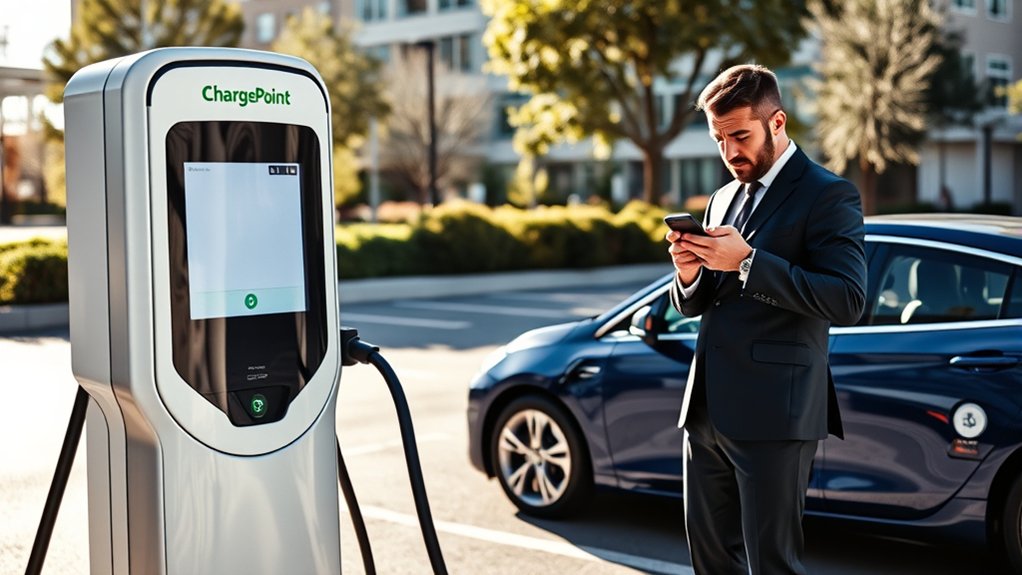
If your ChargePoint session won’t start, work through the simple causes first: station access, cable connection, app or card authorization, payment, connector compatibility, and vehicle settings. Most failed starts come from a loose connector, an inactive or restricted port, an expired payment method, a weak phone connection, a vehicle that’s too cold or has a weak 12-volt battery, or the wrong plug type for your EV.
Quick Answer
To start a ChargePoint session, confirm the station is available, plug the connector in firmly, then authorize the session with Tap to Charge, the ChargePoint app, an activated ChargePoint card, or a contactless credit card on stations that support it. If it still fails, check your payment method, connector compatibility, app connection, and any station error message before reporting the port.
Key Takeaways
- Start with the basics: station status, access rules, cable seating, and vehicle charge settings.
- ChargePoint sessions can start through the app, Tap to Charge, an activated ChargePoint card, or a contactless credit card at supported stations.
- Payment issues can block paid sessions, so check Account > Payment in the app — and note that ChargePoint now adds its own per-session Service Fee on top of the station’s price.
- Use My EV and connector filters to avoid incompatible stations; NACS is now used by many non-Tesla EVs too, not just Teslas, so check which adapter your specific car needs.
- If a public port is damaged, offline, or still won’t start, report the exact port in the ChargePoint app — attaching a photo can speed up the fix.
At a Glance
| Time Required | 2 to 10 minutes for basic checks; longer if support or station maintenance is needed. |
| Difficulty | Easy for driver-side checks; professional help required for home charger circuit problems. |
| Tools Needed | ChargePoint app, phone with data or Wi-Fi, NFC or wallet setup for Tap to Charge, a contactless credit/debit card as a backup, ChargePoint card if available, and your EV owner’s manual. |
| Cost | Free to troubleshoot; charging fees, idle fees, station-set pricing, and ChargePoint’s per-session Service Fee (added March 2026) may still apply. |
Common Reasons Your ChargePoint Session Won’t Start
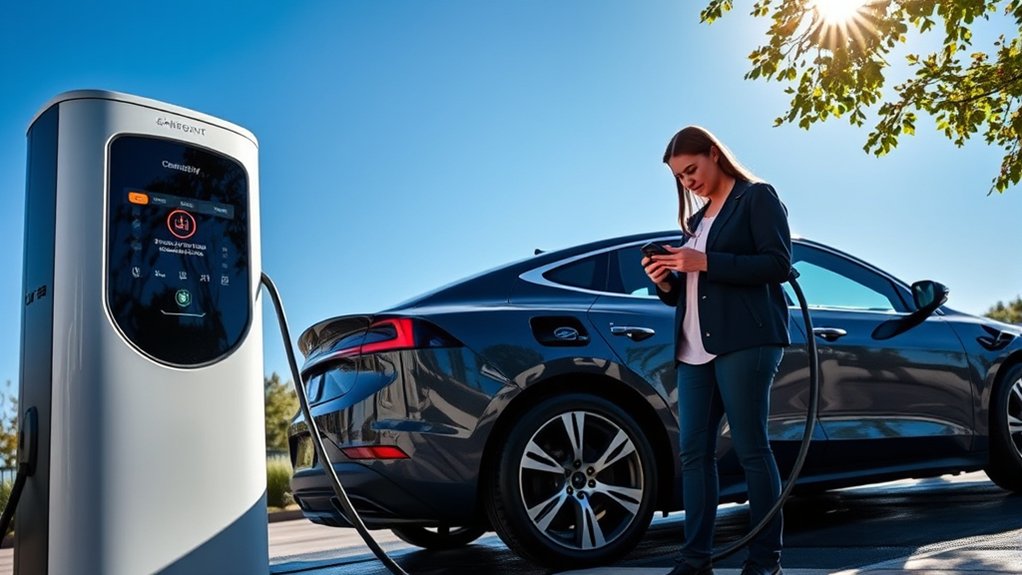
When your ChargePoint session won’t start, the problem usually falls into one of six buckets: the station is unavailable, the connector is not seated, authorization did not complete, your payment method failed, your EV is not compatible with that connector, or the car is refusing the charge.
Start with the station screen or app status. If the port shows unavailable, restricted, in use, out of service, or locked behind a host connection, the session may fail even when the cable looks fine. Some workplace, apartment, fleet, or private-property stations require approval before you can charge.
Next, check the connector. Push it in firmly until the car detects it. If the session starts and then stops, unplug only after stopping the session in the app or at the station, then reconnect and try again.
A less obvious cause sits on the vehicle side. If your EV’s small 12-volt battery is weak, the car may not be able to complete the handshake that unlocks the charge port or talks to the station, even though the high-voltage battery is fine. Very cold weather can cause something similar: some EVs limit or refuse charging until the battery warms up, especially at DC fast chargers. If the charge port won’t unlock, the dashboard looks unusually dark, or charging only fails in cold weather, treat it as a vehicle issue first — check your owner’s manual or consider a jump-start for the 12-volt battery before assuming the station is broken.
Pro Tip: If the app is slow or your phone has weak signal, try a different start method. ChargePoint supports starting a session from the app, using Tap to Charge where available, tapping an activated ChargePoint card at the reader, or tapping a contactless credit card on stations that support it.
Try These Steps First Before Moving Your Car
Use this quick sequence before assuming the station is broken:
- Confirm the port is available. Open the station page in the ChargePoint app and check the exact port, not just the site.
- Check access rules. Look for restricted access, host approval, parking rules, time limits, or a station that is only for employees, residents, fleets, or customers.
- Reseat the connector. Stop the session attempt, unplug, inspect the plug for visible damage, and reconnect firmly.
- Wake the vehicle. Unlock the car, open the driver door, or check the EV’s charging screen to make sure delayed charging, charge limits, cold-battery protection, or a weak 12-volt battery is not blocking charging.
- Try another authorization method. Use Tap to Charge, the app’s Start Charge button, an activated ChargePoint card, or, on stations that support it, a contactless credit or debit card tapped directly on the reader.
- Check payment. Update your payment method in the app if the station has a fee, and remember that ChargePoint’s own per-session Service Fee applies on top of the station owner’s price.
- Try the other port or another station. If only one port fails, report that exact port in the ChargePoint app.
How to Start a ChargePoint Session the Right Way
ChargePoint lists three main ways to start charging with a ChargePoint account: Tap to Charge, the ChargePoint app, or a ChargePoint card — plus a fourth, account-free option at supported stations: tapping a contactless credit or debit card directly on the reader. Your best option depends on the station, your phone setup, and whether the site is a ChargePoint-owned network station or a roaming partner station.
Start With the ChargePoint App
Open the ChargePoint app, select the station, choose the exact port, and tap Start Charge from the station details. Keep your phone online long enough for the authorization to complete. If the app hangs, force close it, reopen it, and try again before moving to a different port.
Use Tap to Charge
In North America, Tap to Charge can start a session by holding your phone over the reader symbol on the station after you have set it up in the ChargePoint app. Android users should make sure NFC is on and the screen is awake. iPhone users should follow the wallet, Face ID, or Touch ID prompts shown on the phone.
Use a ChargePoint Card
If you have an activated ChargePoint card, tap it on the station’s card reader symbol. This is a useful backup when mobile data is weak, your phone battery is low, the app is slow, or a roaming partner station requires a card.
Use a Contactless Credit Card
Some stations let you skip an account altogether by tapping a contactless credit or debit card straight on the payment reader. This guest option is convenient if you don’t want to sign up or your app and card both fail, but ChargePoint applies a higher Guest Fee than it charges account holders using the app, Tap to Charge, or a ChargePoint card — so it’s best treated as a backup rather than your default method.
Note: Some stations unlock the connector only after authorization. Others ask you to plug in first. Follow the station screen, app prompt, or label on the charger.
Decoding ChargePoint Error Messages and Their Solutions
ChargePoint error messages are most helpful when you separate public-station problems from home-charger problems. A message about Bluetooth or Wi-Fi usually points to the app, phone, or home charger setup. A message about a damaged connector, inactive display, or unavailable port usually points to the station or site owner.
- Unable to connect to station: Check mobile data or Wi-Fi, reopen the app, stand closer to the station, and try card or Tap to Charge as a backup.
- Unable to connect to home charger: Check Bluetooth, Wi-Fi, and the home charger’s setup in the app. Stay close to the charger during pairing.
- Unable to join Wi-Fi network: Confirm the network name and password, check signal strength near the charger, and restart the router if your home network is down.
- Vehicle drawing little or no power: Check whether the EV is already near its charge limit, has scheduled charging enabled, or is limiting power because of battery temperature.
- Charge port won’t unlock or car won’t wake up: This is often a weak 12-volt battery rather than a station problem. Jump-start or charge the 12-volt battery, or contact roadside assistance, then try the session again.
- Connector or port fault: Stop the attempt, inspect the connector without forcing anything, try another port, and report the problem in the app.
- Payment declined: Update your payment method under Account > Payment before trying the session again.
Warning: Do not open a public charging station, reset public electrical equipment, or inspect wiring. For home charger circuit, breaker, amperage, or installation errors, stop using the charger and contact a qualified electrician or the charger installer.
Troubleshooting App Issues That Affect Charging
The ChargePoint app can find stations, show real-time status, start charging, manage payment methods, display charging activity, and report problems. If the app fails at the wrong moment, it can keep you from starting or tracking a session.
Common App Errors
Common app-related problems include loading screens, network errors, old login sessions, missing payment details, and station details that do not refresh. Try these fixes:
- Confirm your phone has mobile data or Wi-Fi.
- Close and reopen the ChargePoint app.
- Log out and back in if the account page or payment screen will not load.
- Update the app from the App Store or Google Play.
- Restart your phone if NFC, wallet, or Bluetooth features are not responding.
- Try your ChargePoint card or a contactless credit card if the app is not working and the station has a card reader.
User Troubleshooting Techniques
If the app opens but the session still won’t start, check the exact port page. Look for station status, price, connector type, driver tips, photos, access notes, and comments from other drivers. If you have the wrong vehicle saved, update your EV under the account settings so the My EV filter can show compatible stations.
You can also clear filters if the app is hiding the station or showing the wrong connector. Then filter again by station status, charging speed, connector type, network, and your saved EV.
Impact on Charging Sessions
App issues can cause delays, but they do not always mean the charger is broken. If the station screen is active and the connector looks normal, try a different authorization method before leaving. If every start method fails at the same port, the problem is more likely the station, the port, or the site’s access rules.
Why a Stable Internet Connection Matters for ChargePoint Charging
A stable internet connection matters when you use the ChargePoint app to find a station, view live status, start a session, update payment, or check charging activity. If your phone has weak service in a parking garage, underground lot, or remote area, the app may not refresh or authorize the session quickly.
Before giving up, step closer to the station, move out of a low-signal corner if safe, turn mobile data on, and disable VPN settings that may block app traffic. If you are traveling internationally, check data roaming settings before relying on the app. Occasionally the problem isn’t your phone at all — an older station can lose its own connectivity if its onboard cellular modem is outdated, which shows up as the same “unavailable” or “offline” status. If a specific port stays unreachable across multiple visits, treat that as a station-side issue to report rather than something to keep troubleshooting on your end.
If your phone connection is the issue, use Tap to Charge or a ChargePoint card when the station supports it. If the station itself appears offline or the screen is inactive, try a different port and report the failed one.
Ensuring Charger Compatibility With Your EV Model
Compatibility matters because a charging session will not start if the plug, charging speed, or station access does not match your EV. In the ChargePoint app, add your vehicle under My EV, then filter by connectors that work with your car.
For most North American EV drivers, the main connector questions in 2026 are:
- Level 2 AC charging: Non-Tesla EVs typically use J1772. Since NACS uses the same AC pin layout, most NACS vehicles can charge at a J1772 station with a simple pass-through adapter — no protocol translation needed.
- DC fast charging: NACS has grown well beyond Tesla: Ford, GM, Hyundai, Kia, Rivian, and other automakers now sell EVs with native NACS ports, alongside vehicles that still use CCS1. A CCS1 vehicle needs a NACS-to-CCS1 adapter to fast-charge at a NACS-only stall, and a NACS vehicle needs a CCS Combo 1 adapter at an older CCS1-only station. A shrinking number of older vehicles, mainly early Nissan Leaf models, still use CHAdeMO, which is being phased out.
- ChargePoint’s own hardware: ChargePoint now sells several station models with native NACS connectors, so a growing share of the network no longer requires any adapter for NACS vehicles. Check the station’s connector listing in the app before you go.
- Adapters: Only use adapters rated and approved for your vehicle and charging type. A Level 2 adapter does not make a car DC-fast-charge capable.
- Roaming stations: Some partner-network stations may have different start steps or card requirements.
ChargePoint says drivers can use the app, station displays, and in-dash integrations to confirm compatible stations. If your EV is not listed correctly in the app, update the saved vehicle before filtering.
How to Properly Connect Your Charging Cable
Once you have confirmed that the station and connector match your EV, connect the cable carefully. A loose connector can stop authorization or end the session right after it starts.
- Park close enough that the cable reaches without strain.
- Check the connector for visible damage, dirt, or broken latch parts.
- Insert the connector straight into the vehicle’s charge port.
- Listen or look for the vehicle’s lock, click, light, or dashboard confirmation.
- Start the session with the app, Tap to Charge, ChargePoint card, or a contactless credit card.
- Wait until the car and station both show charging before walking away.
If the connector gets stuck, do not pull hard. Stop the session in the app or on the station, unlock the vehicle, make sure the car is in Park, and follow your owner’s manual for the charge-port release. ChargePoint also recommends contacting vehicle support or ChargePoint support if the connector still will not release.
Payment Issues That Block Charging
Payment issues can block paid charging sessions even when the charger and cable are working. ChargePoint accepts credit or debit cards, PayPal, Apple Wallet, and Google Pay. You can update payment details in the ChargePoint app under Account > Payment.
It’s also worth knowing that ChargePoint began adding its own per-session Service Fee on top of the station owner’s price starting March 2026 — this is separate from any energy rate, session fee, or idle fee the site sets. Account holders currently see a smaller fee than guests who tap a contactless card without an account (a higher Guest Fee applies in that case). Free sessions, workplace charging, and fleet accounts are generally exempt.
Check these items before trying again:
- Your card has not expired.
- Your billing address and security code are correct.
- Your bank is not blocking the transaction or requiring extra approval.
- Your mobile wallet is active on the phone you are using.
- Your ChargePoint account is signed in and not using an old or deleted payment method.
- You understand any pre-authorization hold, parking fee, idle fee, Service Fee, or station-set pricing shown in the app.
If the app lets you start free stations but not paid stations, payment is the likely problem. If paid sessions fail after you update payment, contact ChargePoint support or try another station to rule out a port-specific issue.
Home Charger Issues vs. Public ChargePoint Station Issues
Public stations and home chargers fail in different ways. At a public station, you can check the app, cable, connector, screen, access rules, and payment method, but you should not touch electrical equipment. At home, you can check your Wi-Fi, Bluetooth pairing, app setup, vehicle schedule, and breaker status from a safe distance.
For a ChargePoint Home Flex or other home unit, repeated breaker trips, overheating, burning smells, damaged wiring, or circuit-amperage errors require professional help. Stop charging and contact a qualified electrician or installer. Do not keep resetting the breaker to force a charge.
When to Contact ChargePoint Support for Assistance
Contact ChargePoint support when you have tried the basic steps and the session still will not start, the connector will not release, the station shows a fault, the app will not authorize any station, or payment still fails after you update it.
For a broken public station, report the exact port in the ChargePoint app:
- Open the ChargePoint app.
- Go to Chargers or the map.
- Select the station and the exact port that failed.
- Scroll down and tap Report a Problem.
- Select the exact issue, add a short comment, attach a photo of the connector, screen, or error message if you can, and submit it.
Most ChargePoint network stations are independently owned and operated, so the site owner is usually responsible for maintenance. Reporting the correct port — with a photo when possible — helps ChargePoint route the issue faster and helps other drivers avoid the same failed session.
Frequently Asked Questions
How do I restart my ChargePoint station?
For a public station, do not open panels or reset electrical equipment. Stop the session attempt, unplug if the connector releases normally, reconnect, and try the app, Tap to Charge, or your ChargePoint card again. For a home charger, use the app or follow the owner’s manual. If a breaker or circuit problem repeats, call a qualified electrician.
Why isn’t my ChargePoint working?
The most common causes are a restricted or unavailable station, loose connector, app or phone connection issue, expired payment method, wrong connector type, vehicle charging schedule, a weak 12-volt battery, or a station fault. Check the exact port in the app, reseat the connector, confirm payment, and try another authorization method.
Is the ChargePoint server down?
If the app will not load, first check your phone’s data connection and try closing and reopening the app. If multiple stations fail or account features will not load, use a ChargePoint card, contactless credit card, or Tap to Charge if available, then contact ChargePoint support through the app or support center.
Why is the charging station not working?
A station may be unavailable because of access restrictions, a damaged connector, inactive screen, network problem, payment issue, power fault, or maintenance problem. Try another port if one is available. If the same port keeps failing, report it in the ChargePoint app using Report a Problem.
Can I start ChargePoint without the app?
Yes. Many stations can start with an activated ChargePoint card, some support Tap to Charge from a phone wallet after setup, and a growing number accept a contactless credit or debit card tapped directly on the reader. Some roaming partner stations may specifically require a ChargePoint card, so keeping one in your car is a useful backup.
What should I do if the connector is stuck in my EV?
Do not force it. Stop the session, unlock the vehicle, make sure the car is in Park, and try the vehicle’s normal charge-port release. If it stays locked, use the manual release instructions in your EV owner’s manual or contact vehicle support and ChargePoint support.
Can I start a ChargePoint session with just a credit card?
Yes, on stations that support it. Tapping a contactless credit or debit card directly on the reader lets you charge as a guest without a ChargePoint account. It’s a handy backup, but ChargePoint applies a higher Guest Fee than it charges account holders using the app, Tap to Charge, or a ChargePoint card, so it’s best used when your usual method isn’t working.
Why did my ChargePoint session cost more than expected?
Since March 2026, ChargePoint has charged its own per-session Service Fee on top of whatever price the station owner sets. Account holders currently pay less than guests who pay with a contactless card. Free stations, workplace charging, and fleet accounts are generally exempt. Check the station’s price screen in the app before plugging in if you want the full breakdown.
Conclusion
A ChargePoint session that won’t start is usually fixable if you troubleshoot in the right order. Check the exact port status, access rules, cable connection, app or card authorization, payment method and any applicable fees, connector compatibility, and your EV’s charging settings — including cold-weather or 12-volt battery issues on the vehicle side. If one public port still fails after those checks, try another port and report the issue, with a photo if you can, in the ChargePoint app so the station owner can address it.
Sources
- ChargePoint — How do I start a charging session or use Tap to Charge? — backs up app, Tap to Charge, and ChargePoint card start methods.
- ChargePoint — Do ChargePoint stations offer the NACS connector? — backs up 2026 NACS rollout and connector compatibility guidance.
- ChargePoint — What payment methods can I use? — backs up accepted payment methods and Account > Payment updates.
- ChargePoint — What are the pricing policies and fees I should be aware of? — backs up the Service Fee and Guest Fee introduced in March 2026.
- ChargePoint — How can I get the connector unstuck? — backs up connector-release safety steps.
- ChargePoint — How do I report a station that is not working properly? — backs up the in-app Report a Problem flow.